Prophet's Chaturbate GIF Emoticon Guide
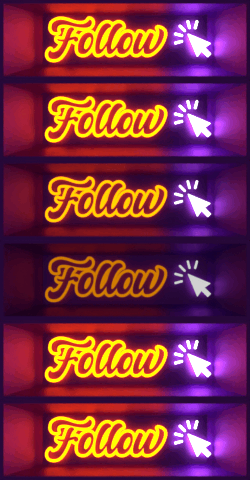

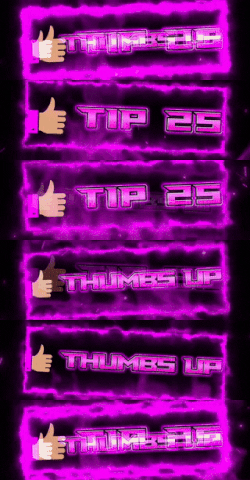
Love them or hate them you will have seen Chaturbate GIF Emoticons littering the chat.
These emoticon images are posted into the room chat by Room Users or by Room Bots that use them for Tip Menus or Rotating Notifier Messages.
Although everyone refers to these emoticon images as GIFs they can either be GIF, PNG, JPG or BMP images.
Not all Chaturbate emoticons animate - many are simple static images.
In this guide we will cover:
- Enabling & Disabling GIFs being displayed in the chat.
- Posting GIFs in the chat and using the Autocomplete function.
- Uploading your own GIFs to Chaturbate
- Additional Information about GIFs.
1. Enabling & Disabling GIFs being displayed in the Chat:
Displaying GIF emoticons in Chaturbate is set to ON by default.
To Disable or Enable them click the little Gear Icon in the Left Panel to bring up your Chat Settings:
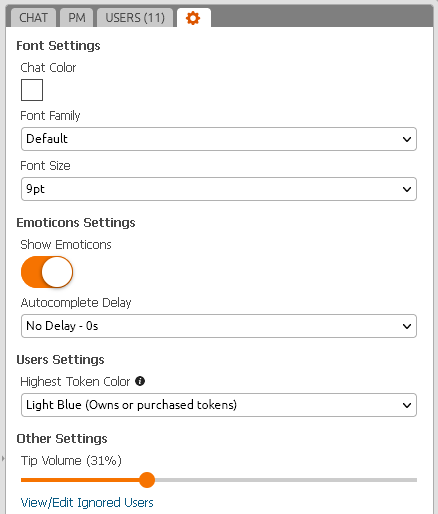
The Orange Switch below the Emoticons Settings controls whether the images will be displayed in the chat.
In the above image Show Emoticons it is set to ON. Clicking on it will toggle the setting.
When the setting is OFF all the GIFs posted into the chat will be replaced by the GIF code.
Under the Show Emoticons switch is the Autocomplete Delay setting.
The Autocomplete function is explained in the next section. For now make sure it is set to No Delay – 0s
2. Posting GIFs and using the Autocomplete function:
To post a GIF into a chat room you need to type a GIF Code into the Chat Bar.
A GIF Code is a block of characters preceded by a colon character.
When you type a colon character followed by some characters the Autocomplete window will open and show 20 of the closest character matches to your GIF code.
You can use the Up / Down Keyboard Arrow Keys to scroll through the list, or click directly on the items in the list.
In the example below I have typed :thanks into the chat bar and the Autocomplete window shows the 20 closest matches:
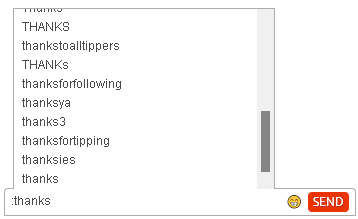
When I click on one of the matches a small preview window will appear above the list showing the GIF image associated with the selected code.
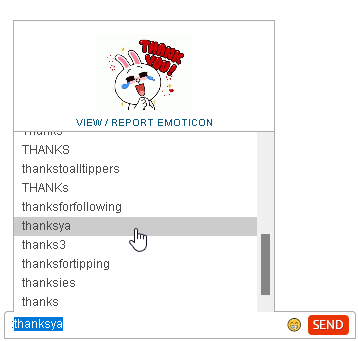
When I press Enter the Autocomplete window will close and the code will be copied into the chat bar:

Now when I click on Send (or press Enter) the GIF code will be sent and the associated GIF will be displayed in the chat:
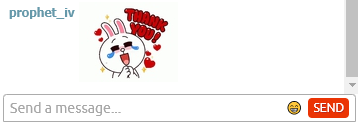
You do not have to use the Autocomplete function. If you can remember what your favourite GIF code is you can just type it in from memory.
Be aware that if you get it wrong a totally random GIF may be displayed. If there is no exact match for your code then no GIF will be displayed in the chat. Instead your mismatched code will be displayed, and that’s considered a Fail and open to ridicule (lolz).
Limitations when posting GIF codes:
You can use up to three (3) GIF codes in one chat line to post several GIFs together.
Any additional GIF codes after the third code will not be displayed in the chat.
If you try to post the same GIF code again on the next line you will get the "Duplicate message not sent" message just as if you had sent a normal chat line in twice.
Broken GIFs:
You may find when using the Autocomplete function the GIF animation it displays is working as expected, but when you post it into the chat it only shows the first frame of the animation. Congratulations, you have been hit by a Broken GIF Fail.
This happens because the original GIF animation uploaded to Chaturbate was either wider than 250px or higher than 80px, or both.
For these larger images Chaturbate will create two GIF images on their server. One of these is the original sized GIF with working animation, and the other is resized down to fit into a 250 × 80 image size. The resized image will only contain the first frame of the GIF animation.
The Autocomplete preview window will always show the original uploaded GIF animation. Your browser will resize it down to 250 × 80 so it will animate normally in the preview window. When it is posted into the chat it will show the 250 × 80 resized image with only one frame of the animation.
You can test if a GIF animation is going to fail by clicking on the image in the preview window. This will open a popup window in the center of your screen showing the original GIF image. If it is bigger than the image in the preview window then it’s going to fail.
3. Uploading your own GIFs to Chaturbate:
So you have your killer GIF made and want to start showing it off chat rooms..
Some things to consider before uploading your GIF:
Once you upload your GIF to Chaturbate it will be in the system forever.
Getting a GIF removed is almost impossible. You will need to talk to Chaturbate about it but keep in mind that GIF removal is very low on their priority list.
Most models are cool about GIFs in their chat, but do not go extra on it. If you over–spam a chat with GIFs you risk getting a silence, or a full-on ban.
To upload GIFs to Chaturbate you must be logged on and have previously purchased Tokens. You cannot upload GIFs using a Grey account. Keep in mind that Chaturbate will log which account uploaded the GIF. Abuse of the system may trigger an account ban.
The maximum file size of an uploaded GIF is 1.9MBytes. If you try to upload a file bigger than this it will be rejected after the upload has finished.
If your GIF is an animation then keep the image dimensions 250 x 80 or less. If you exceed 250px for X or 80px for Y then the GIF will not animate in the Chat Room.
Try to keep the Frame Rate at 20 Frames Per Second or less. More Frames-Per-Second equales larger file size. Remember not to exceed the 1.9MByte file size.
Now let’s Upload a GIF!
For this lesson I will use the GIF animation shown below.
The GIF code for this will be gif-example

Now we go to Chaturbate’s Graphic Upload Page at https://chaturbate.com/emoticons/
You will see this page:
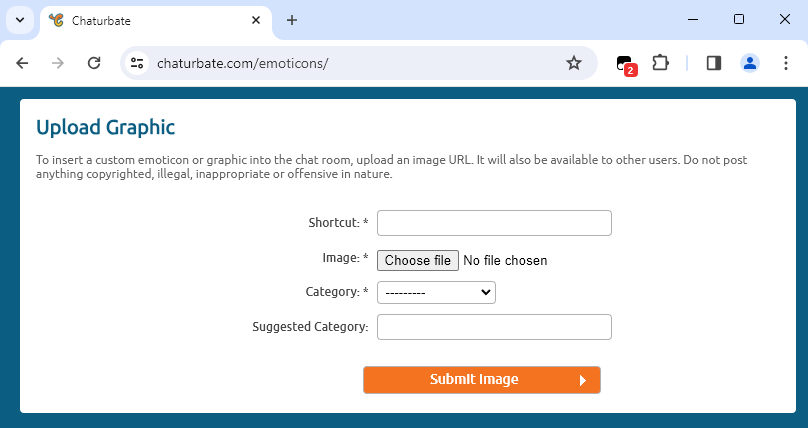
Now we fill in the Upload Graphic form fields:
Shortcut is the GIF code we want to use for our uploaded GIF. For this lesson it will be gif-example
Image is the GIF file on your PC you wish to upload.
Category. There are a number of options here. For this GIF I will select Misc
Suggested Category. Just keep this blank as it is not needed.
With everything filled-in the Upload Page will look like this:
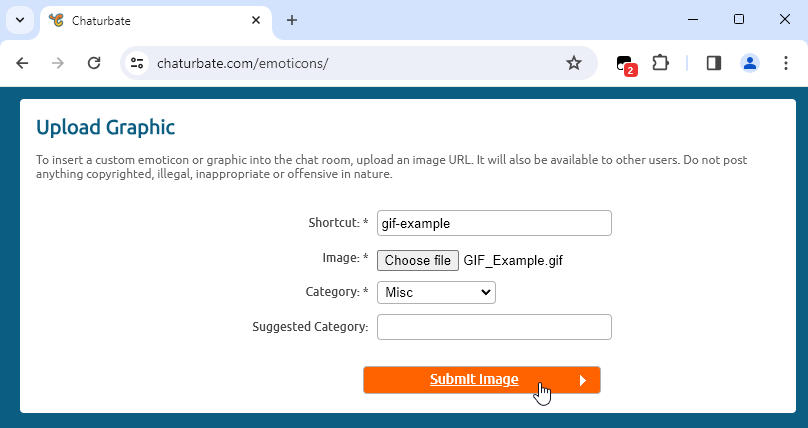
Now click on the Submit Image button. The upload process will take a few seconds.
When it is finished uploading it will show this screen below:
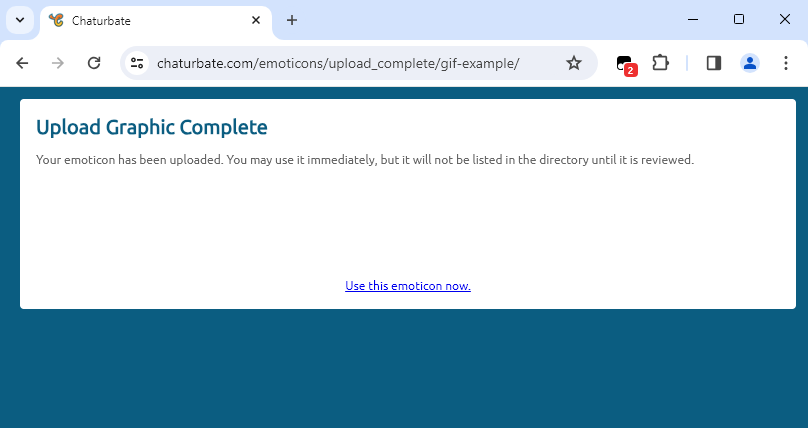
The GIF has been successfully uploaded and now can be used in chat rooms 🙂
It may take a minute or two for the new GIF Code to show in the Autocomplete function.
4. Additional Information about GIFs:
Chaturbate GIF Auditing:
Chaturbate appear to audit newly uploaded GIFs. If you upload something that violates the T&Cs of the site it will disappear within a short time. An example would be fake tip GIFs that show as tipped 1000 tokens
HTML Image Link Fail:
I have seen users try to post HTML Image Links direct into the chat, or use HTML links in their BOT messages.
An example of this is: <img src="https://blahblah.com/my_image.gif">
HTML codes do not work when posted into the chat or when used in BOTs.
If you want an image to show in the chat it needs to go through the Upload Graphic procedure first.
Checking GIF codes:
You can use the Upload Graphic Complete window to show any GIF that was uploaded in the past.
Set the last part of the web address the name of the GIF.
The example link below shows the FolloW GIF:
https://chaturbate.com/emoticons/upload_complete/FolloW
Note: This will show the original sized uploaded GIF file and not the the 250 × 80 resized image (if one was created).
GIF Upload Date & Time:
You can find out the date and time when a GIF was uploaded to Chaturbate.
Right-Click on any GIF in the chat room and select Open Image in New Tab.
For example the FolloW GIF will show this URL in the address bar of the New Tab:
https://static-pub.highwebmedia.com/uploads/avatar/2022/04/25/13/19/b38821f97ca3edd922d6cc394691b0c89bdb8509.jpg
The part of the URL of interest is: 2022/04/25/13/19/
The format of this part is: Year / Month / Date / Hour / Minute
The FolloW GIF was uploaded at 13:19 on 25th April 2022
Note: The Hour is always Pacific Standard Time (UTC -8)